How to Make a Post
Posts are how you share your progress, fuel logs, goals, and wins with the Macromaxxing community. This guide walks you through creating a post from start to finish.
Last updated: April 2026
Step 1: Tap the + Button on the Hub
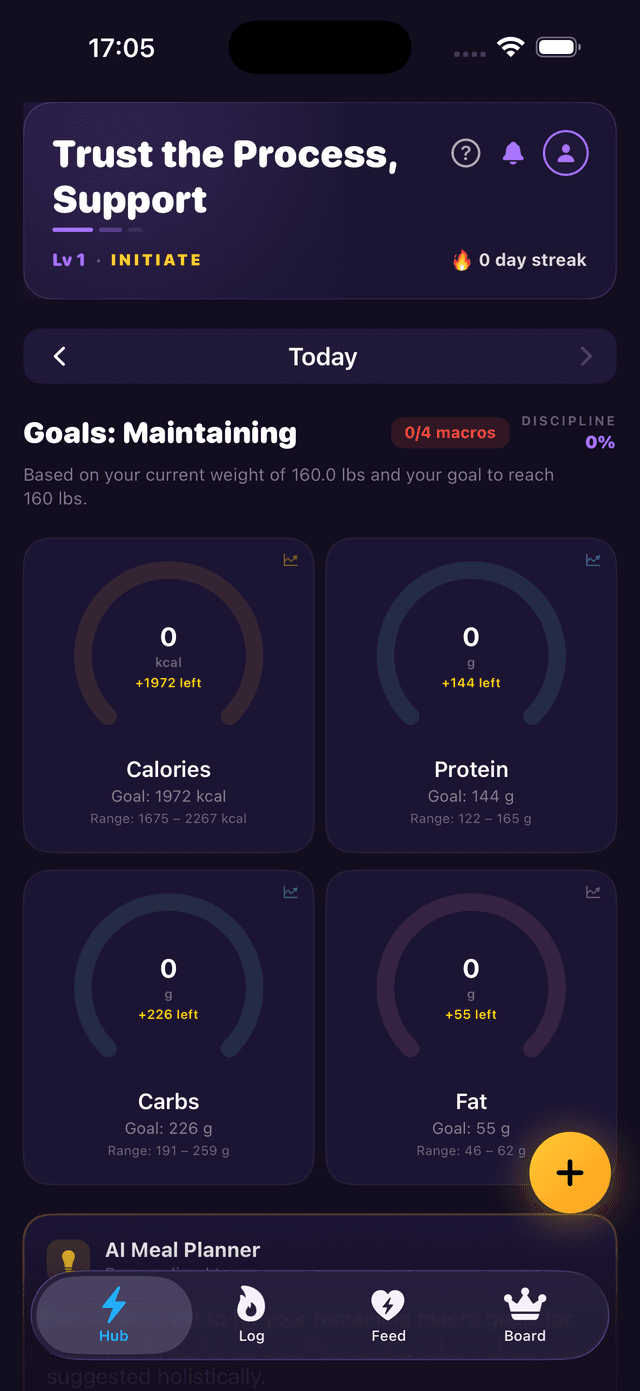
From the Hub tab (your home screen), look for the yellow + button in the bottom-right corner of the screen. This is your quick-action button. Tap it to reveal the action menu.
Step 2: Select “Make a Post”
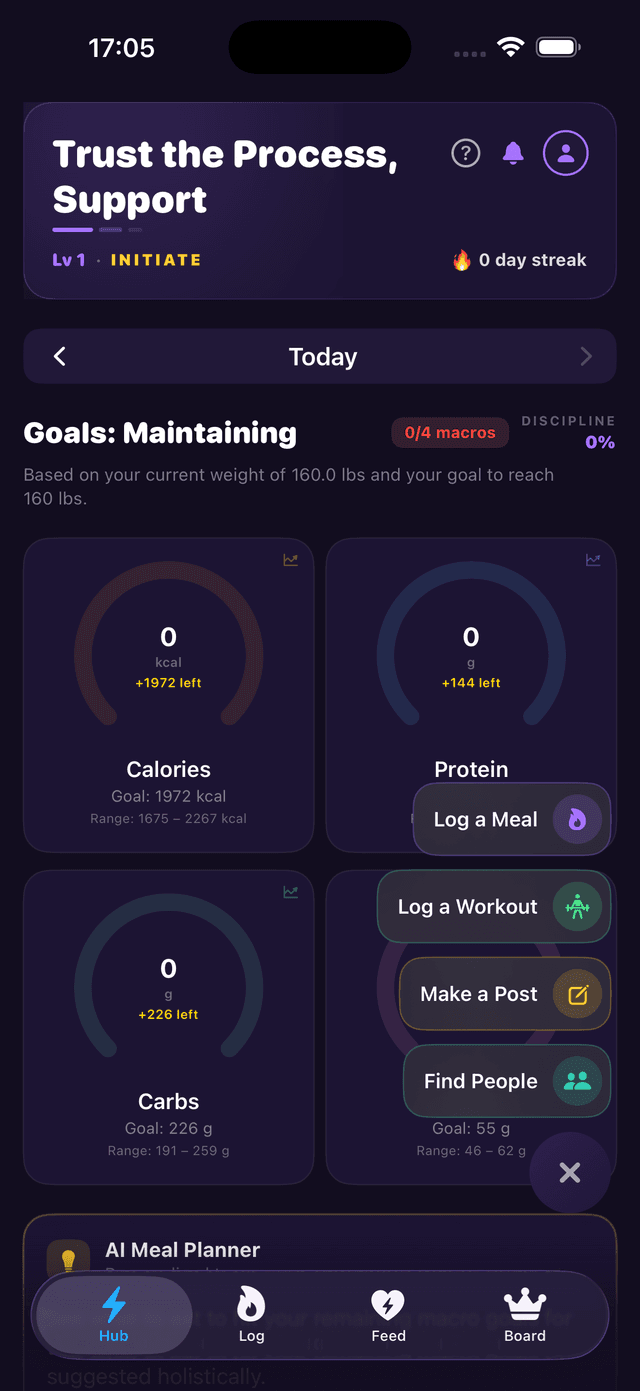
After tapping the + button, a menu appears with four options: Log a Meal, Log a Workout, Make a Post, and Find People. Tap Make a Post to open the New Post screen.
Step 3: Compose Your Post
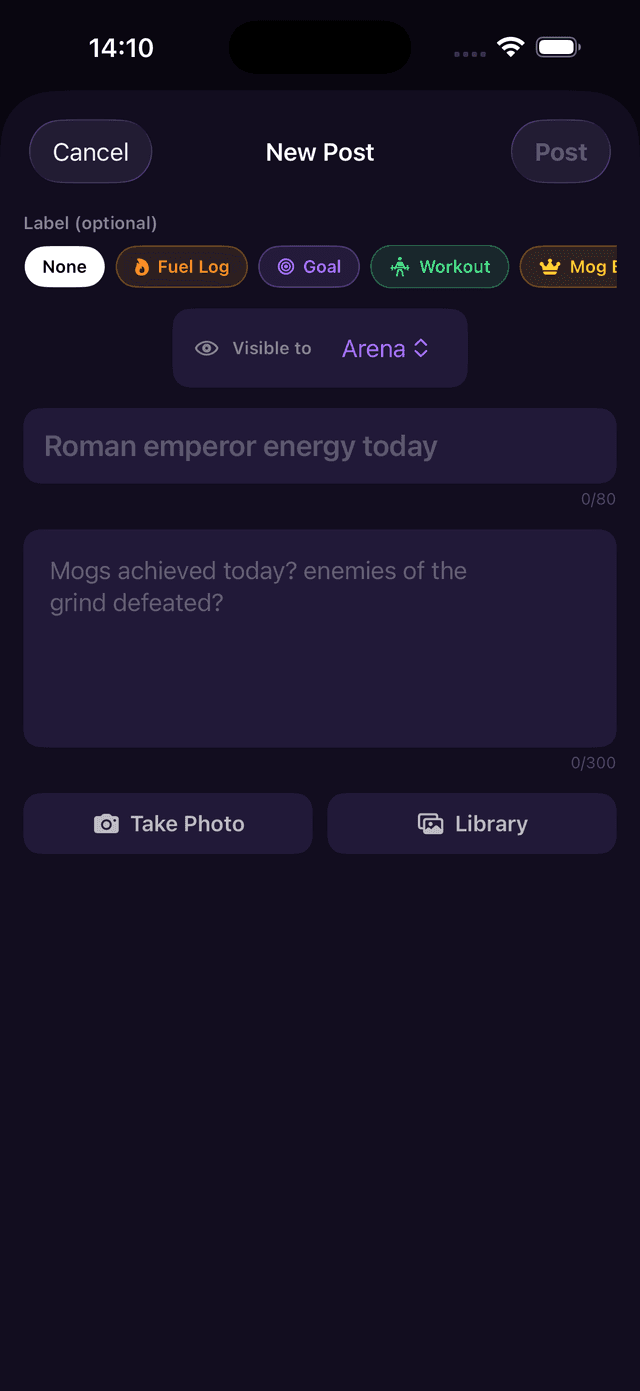
The New Post screen is where you put your post together. Here's what each part does:
Label (optional)
Choose a label to categorize your post. Labels appear as colored tags at the top: None, Fuel Log, Goal, Workout, Mog Board, Transformation, Meal Inspo, and Advice. Some labels automatically attach extra content to your post — more on that below.
Visible to
Control who sees your post. Use the Visible to picker to choose your audience — for example, Arena makes it visible to the broader community.
Title & Body
Give your post a title (up to 80 characters) and a body (up to 300 characters). The title is your headline — keep it punchy. The body is where you share details, ask questions, or hype up your wins.
Photos
Attach a photo by tapping Take Photo to use your camera or Library to pick from your photo library. Photos are optional but make your posts stand out on the feed.
Post Labels Explained
Labels do more than just categorize — some automatically attach content to your post. Here's what each label does:
Fuel Log
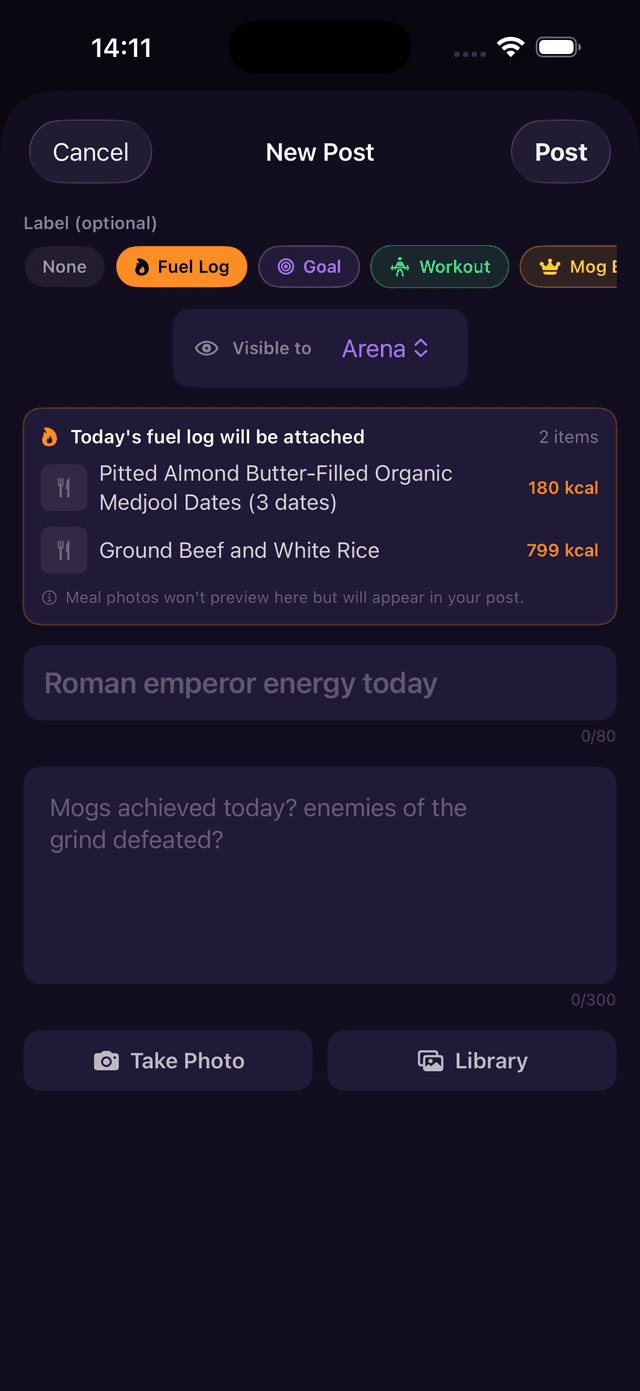
Selecting the Fuel Log label automatically attaches today's food log to your post. Your post will show a preview card with the number of items logged, each food entry with its calorie count, and a note that meal photos will appear in the published post. This is a great way to share what you're eating and keep yourself accountable.
Earns Aura Points!
Posting with the Fuel Log label earns you aura points toward your level and streak. Stay consistent to level up faster.
Goal
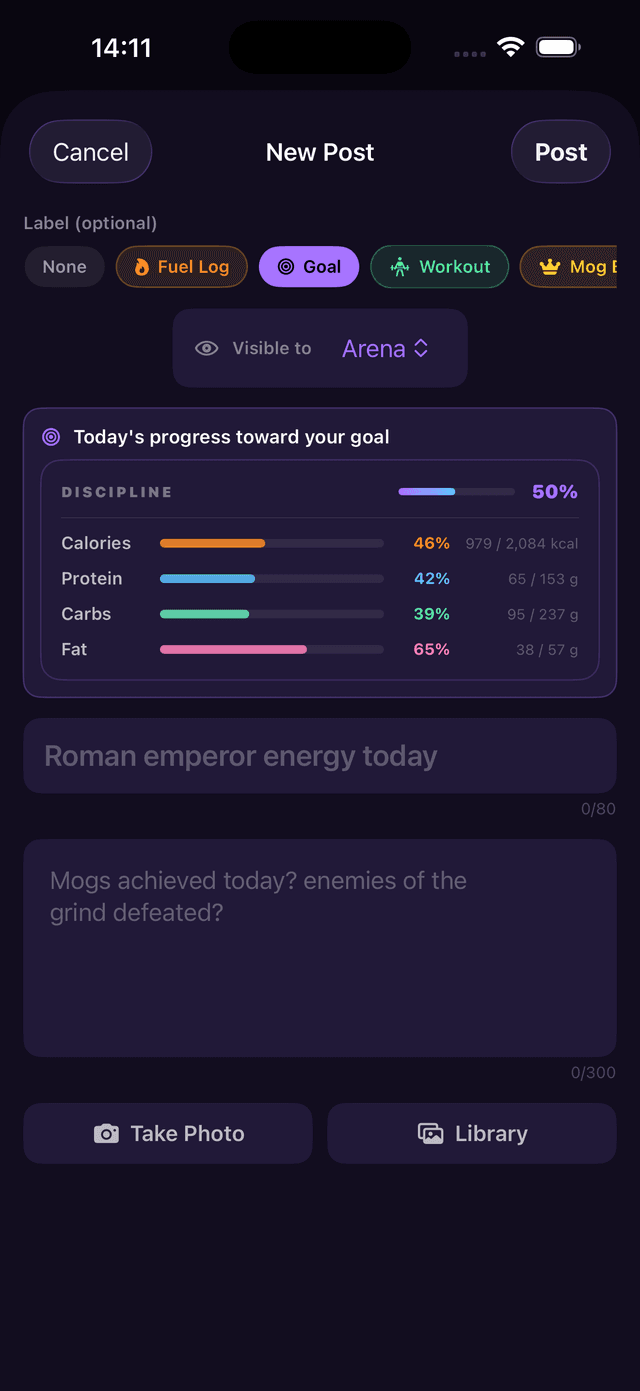
The Goal label attaches a snapshot of today's progress toward your macro goals. The preview card shows your overall Discipline percentage along with individual progress bars for Calories, Protein, Carbs, and Fat — each with their current intake vs. target. Share your progress to motivate others and flex your discipline.
Workout
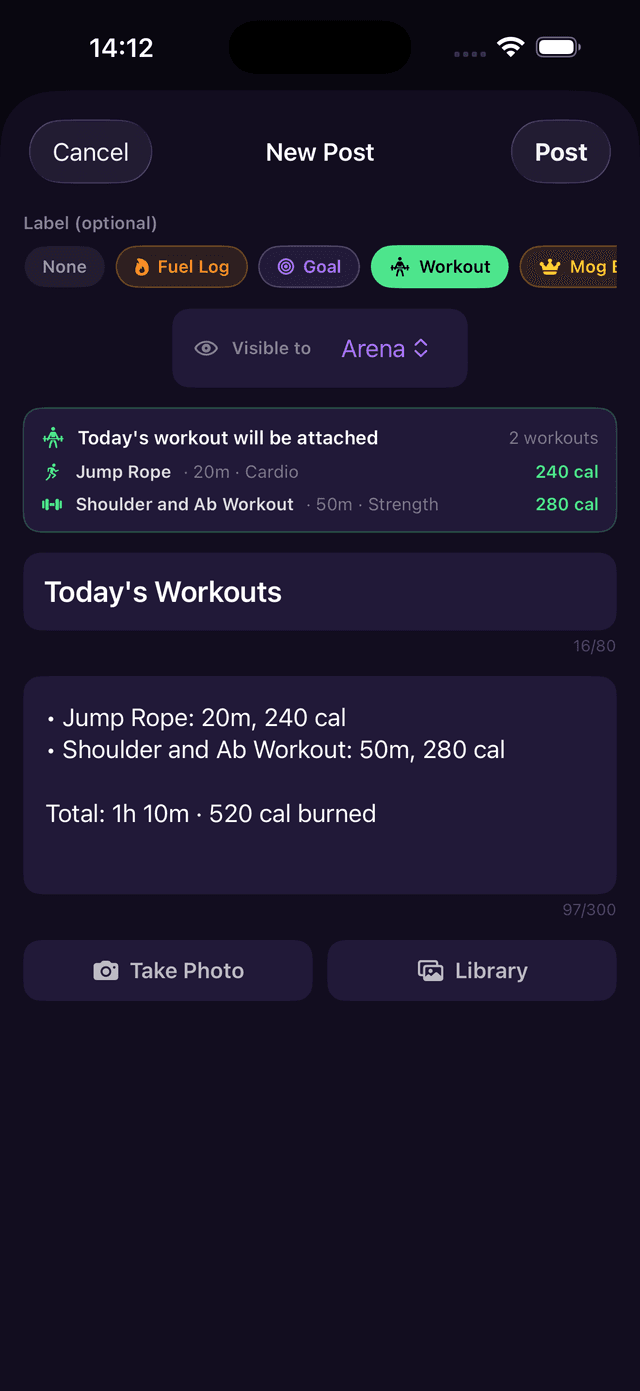
The Workout label automatically attaches today's workout summary to your post. The preview card shows the number of workouts logged, each exercise with its duration, type, and calories burned, plus the total time and calories. The body field is pre-filled with a summary of your session — share what you crushed at the gym today.
Earns Aura Points!
Posting with the Workout label earns you aura points. Log your workouts consistently to build your streak and climb the leaderboard.
Mog Board
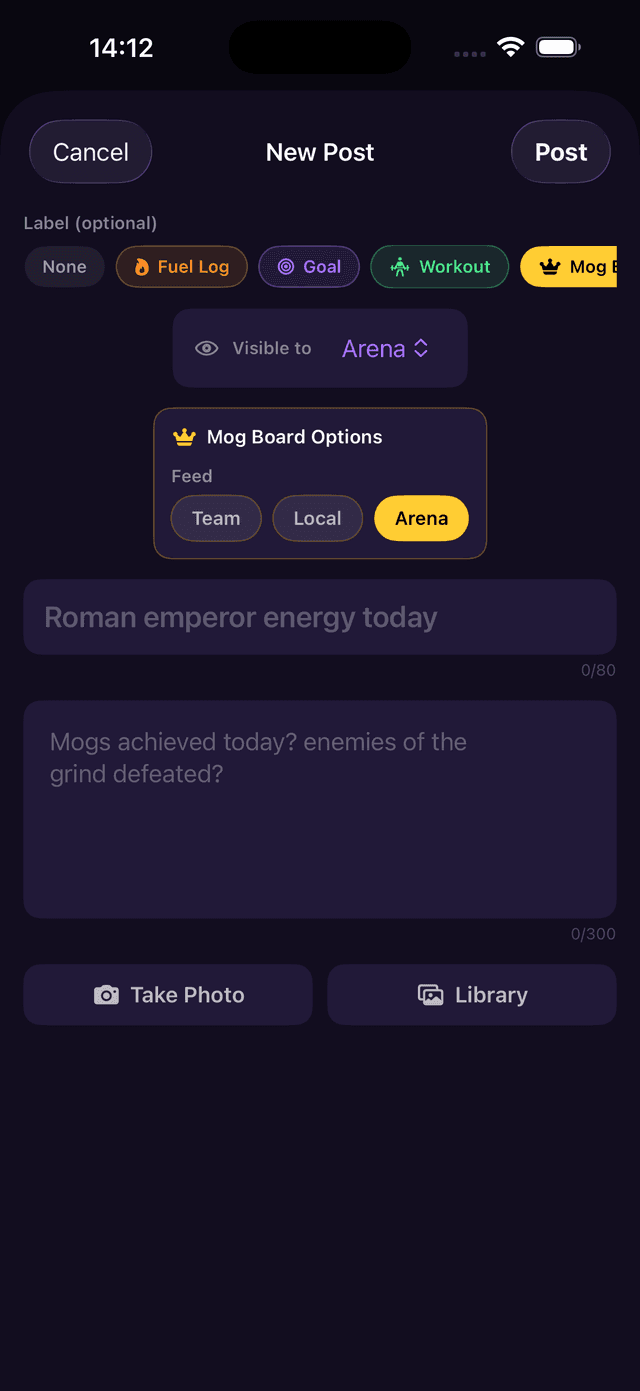
The Mog Board label is for sharing your biggest wins and achievements. When selected, a Mog Board Options panel appears letting you choose your Feed visibility — Team, Local, or Arena. Hit a new PR? Reached a milestone? Mog on the timeline.
Transformation
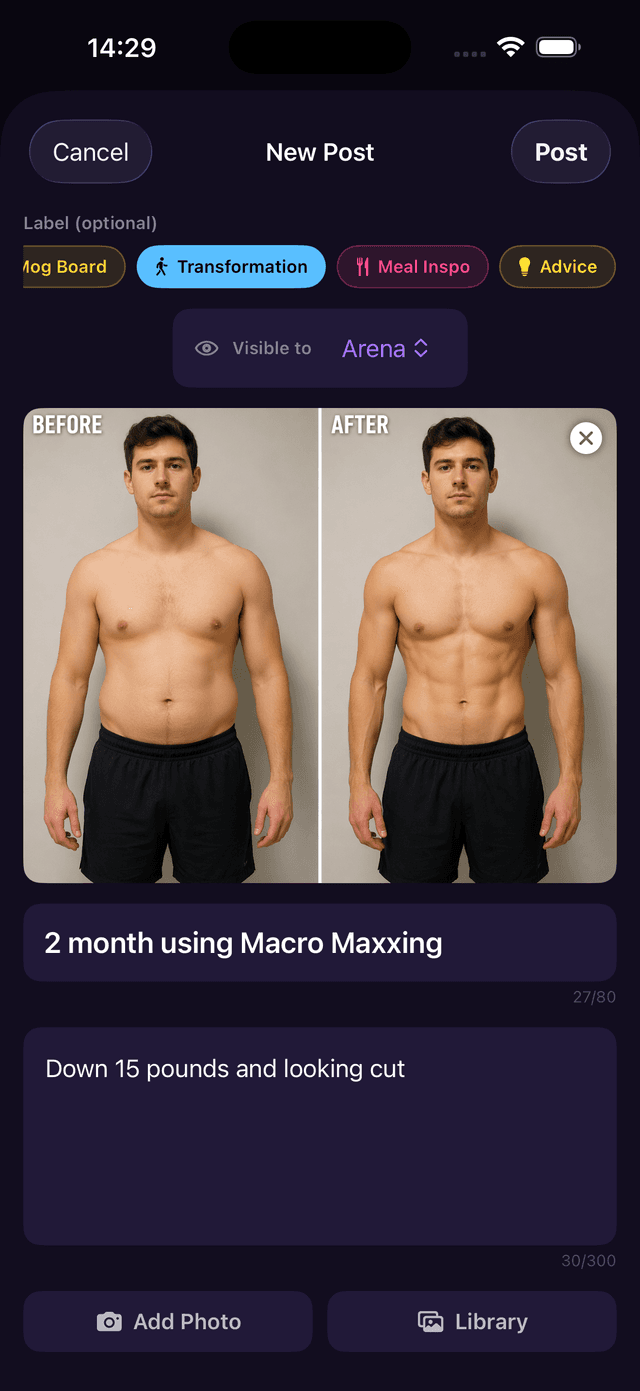
Use the Transformation label to document your physical progress over time. Attach before-and-after photos to show your glow-up, then add a title and description to tell your story. Physique updates, progress pics, and transformation posts all belong here.
Meal Inspo
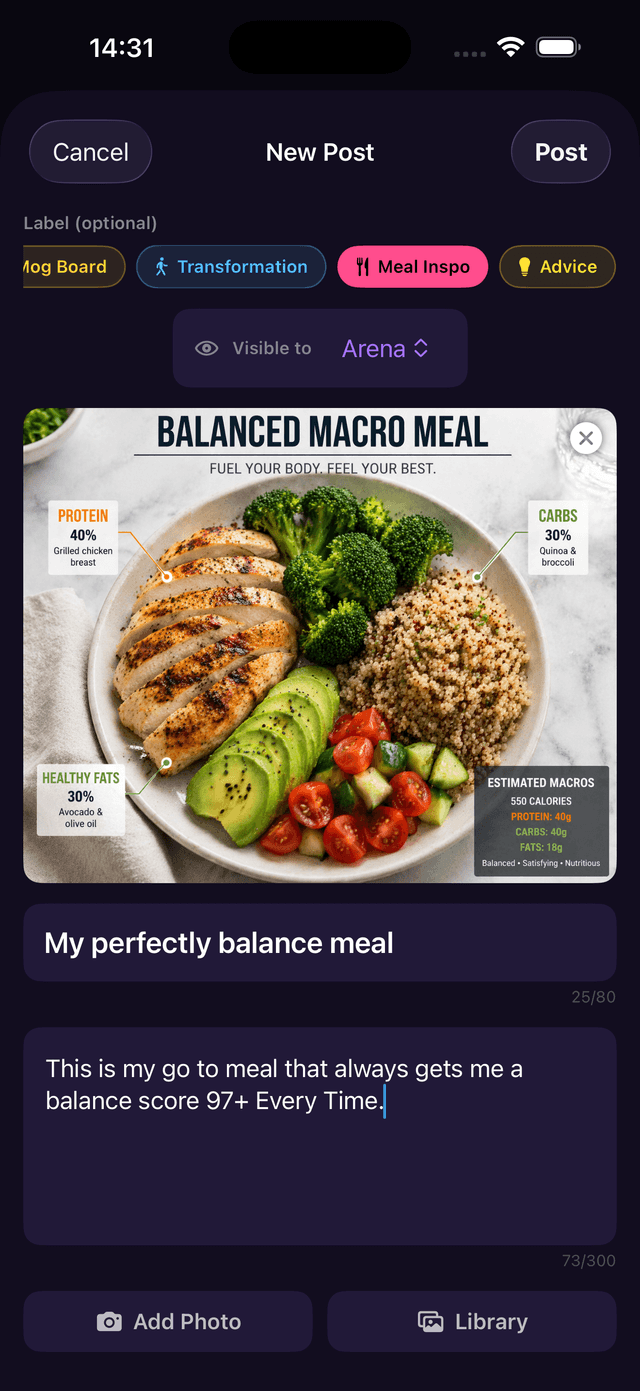
Share meal ideas and recipes with the Meal Inspo label. Attach a photo of your meal to show it off, and use the title and body to share the recipe or why it works for your macros. Found a high-protein meal that actually tastes good? Post it here so others can benefit.
Advice
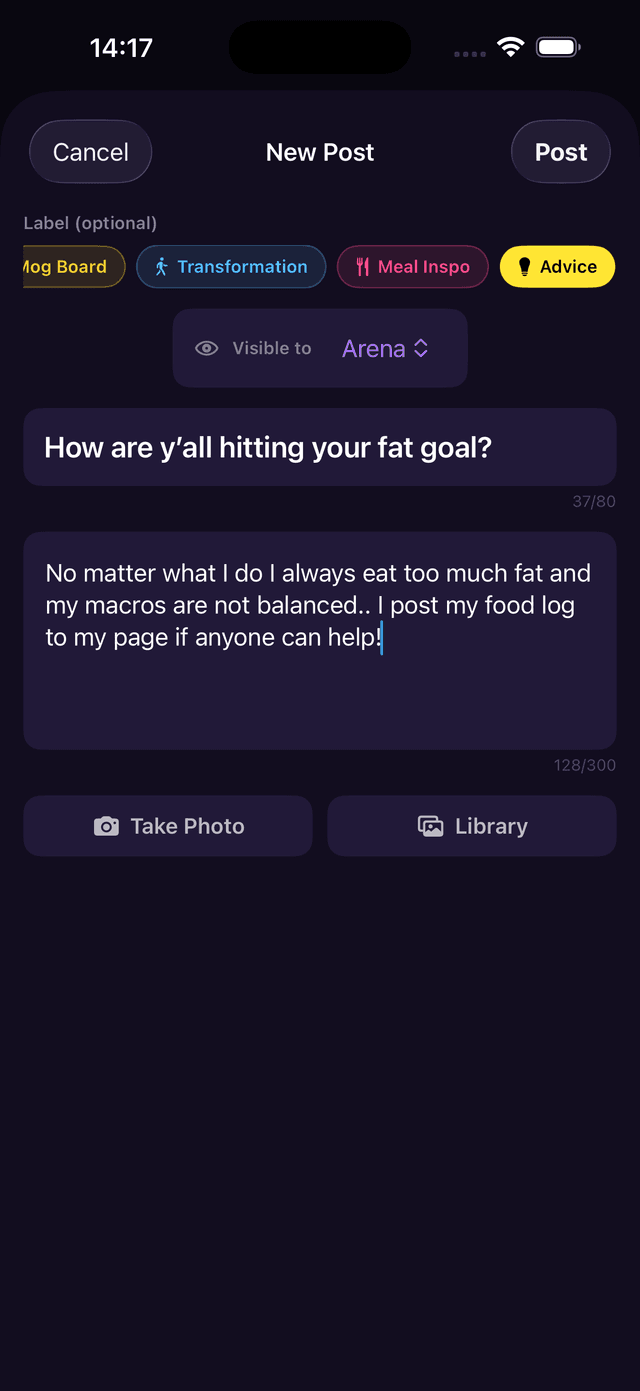
The Advice label is for asking questions or sharing tips with the community. Whether you need help hitting your macros or want to share what's working for you, this is the place.
Publishing Your Post
Once you've filled in your title and body, chosen a label (optional), and attached any photos, tap the Post button in the top-right corner to publish. Your post will appear on the feed for others to see, react to, and comment on.
Changed your mind? Tap Cancel in the top-left corner to discard your post and go back.
Tips
Earn Aura Points — Posts with the Fuel Log or Workout labels earn you aura points. These contribute to your XP, level, and streak shown on the Hub.
Show Your Discipline — Use the Goal label to flex your daily discipline score. The higher the percentage, the harder you went.
Add a Photo — Posts with photos get more engagement on the feed. Snap your meal, your pump, or your progress.