How to Log a Workout
Macromaxxing lets you log workouts manually or by describing them with your voice. When you log a workout, the app can automatically adjust your daily macro goals based on the exercise type, duration, and calories burned — so your nutrition stays aligned with your training.
Last updated: April 2026
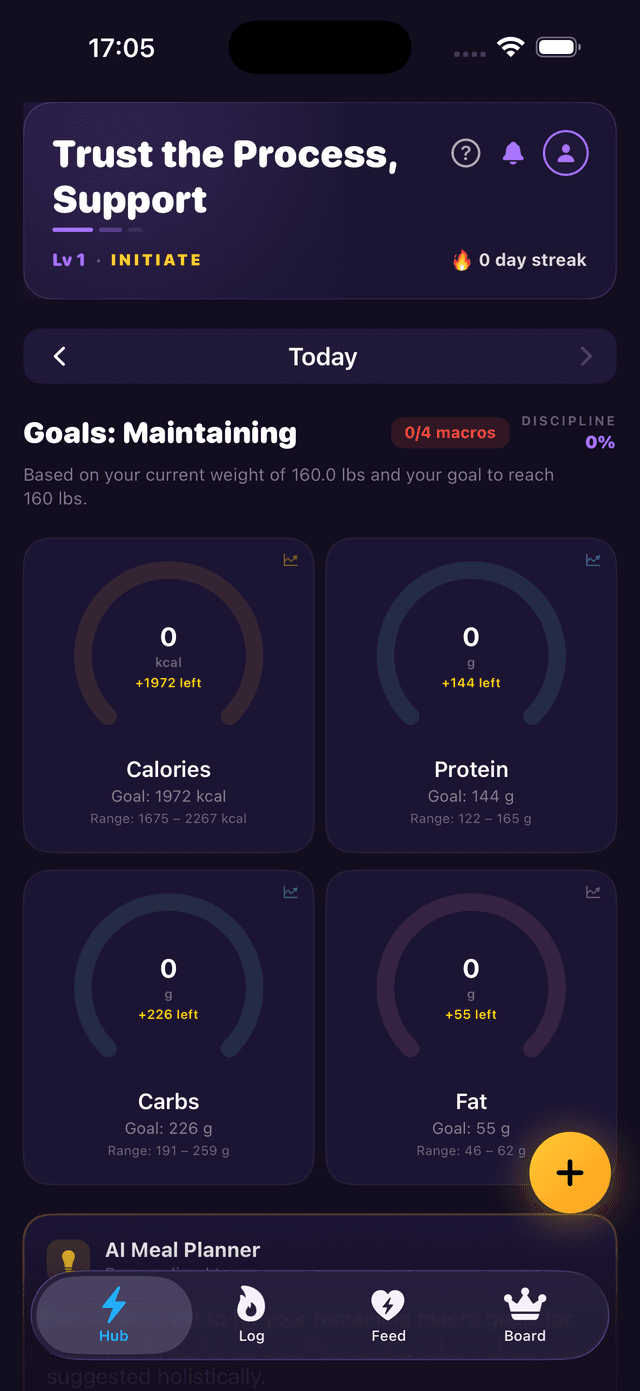
Step 1: Tap the + Button on the Hub
From the Hub tab (your home screen), tap the yellow + button in the bottom-right corner to open the quick-action menu.
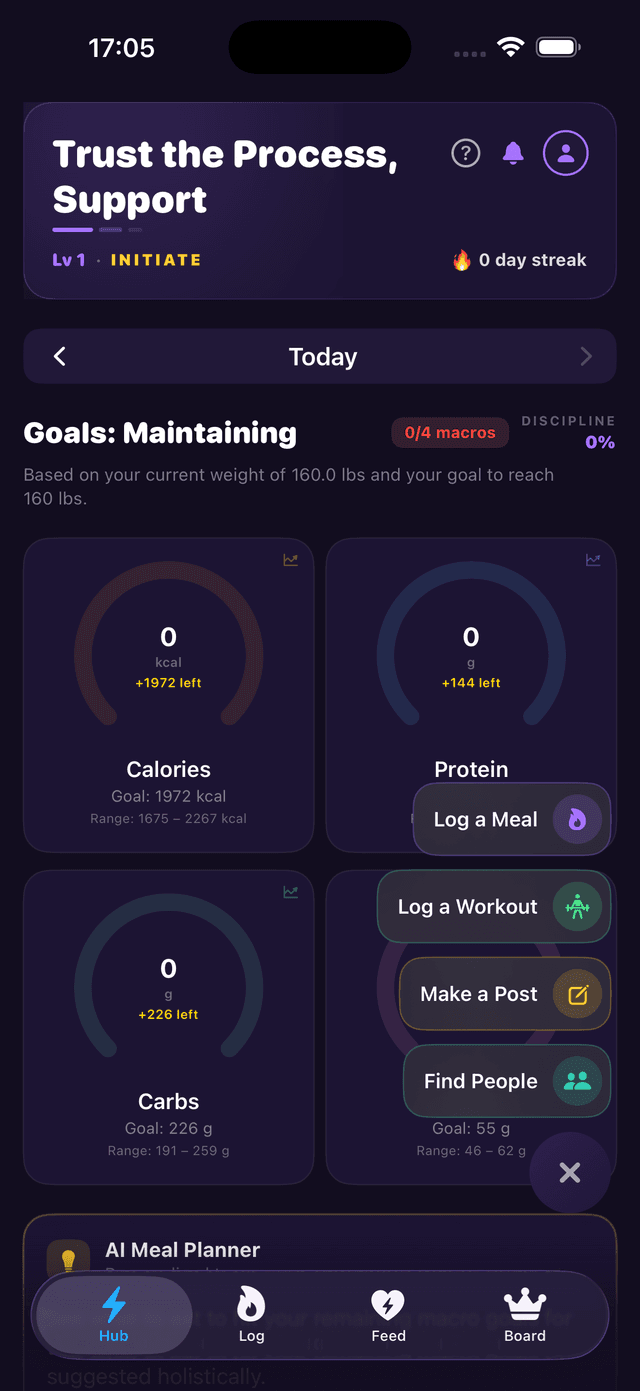
Step 2: Select “Log a Workout”
The action menu shows four options. Tap Log a Workout to open the workout logging screen.
Step 3: Log Your Workout
The Log a Workout screen has two modes: Manual and Voice. Choose whichever fits your flow.
Manual Entry
In Manual mode, fill in the following fields:
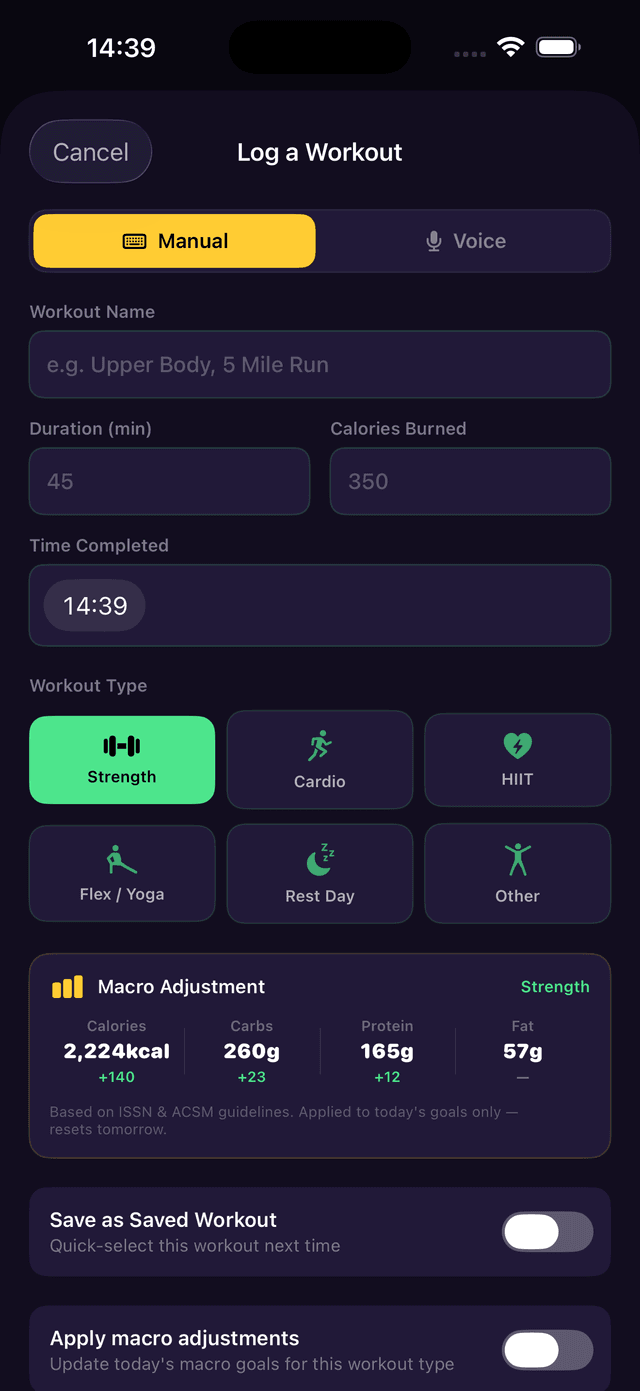
Workout Name
A descriptive name for your session (e.g. “Upper Body, 5 Mile Run”).
Duration & Calories Burned
Enter the workout duration in minutes and estimated calories burned.
Time Completed
The time you finished the workout. Defaults to the current time.
Workout Type
Choose from Strength, Cardio, HIIT, Flex / Yoga, Rest Day, or Other. The workout type affects how your macro goals are adjusted.
Voice Logging with AI
Prefer to talk? Switch to the Voice tab and tap the microphone to start recording. Describe your workout in natural language — for example: “I did five different shoulder workouts, three sets each with 10 reps. Then I jumped rope for 15 minutes. And I did about 10 minutes of abs.”
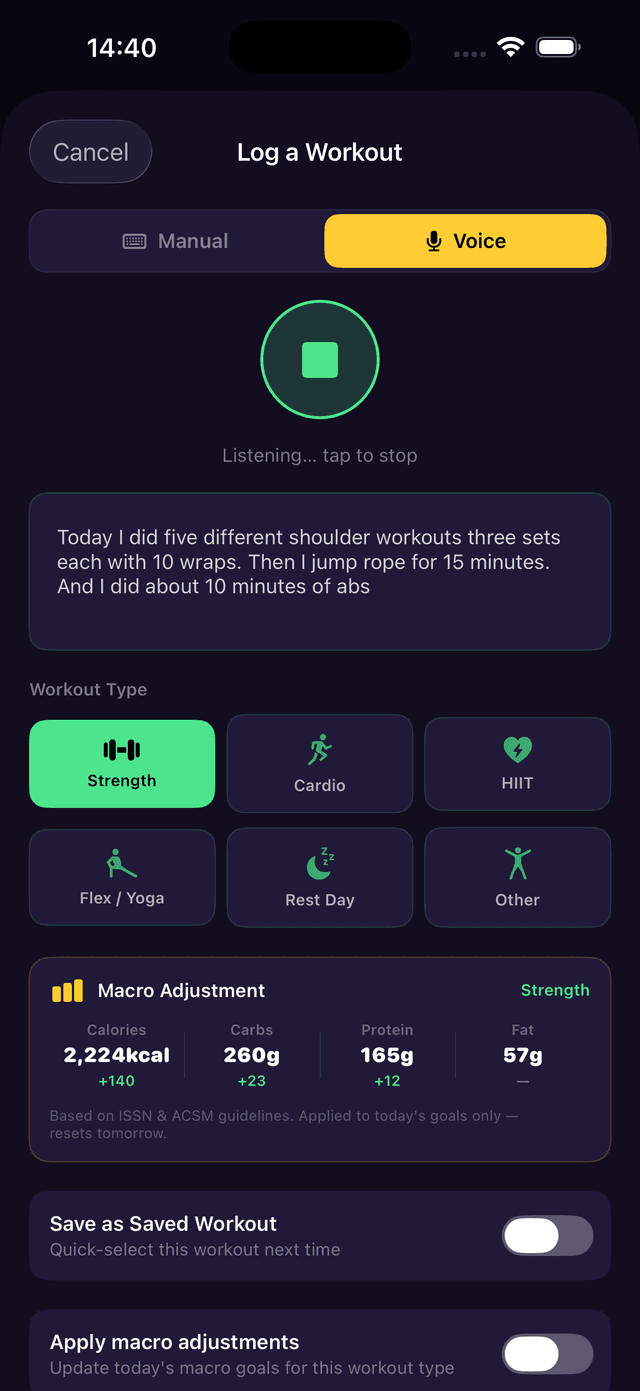
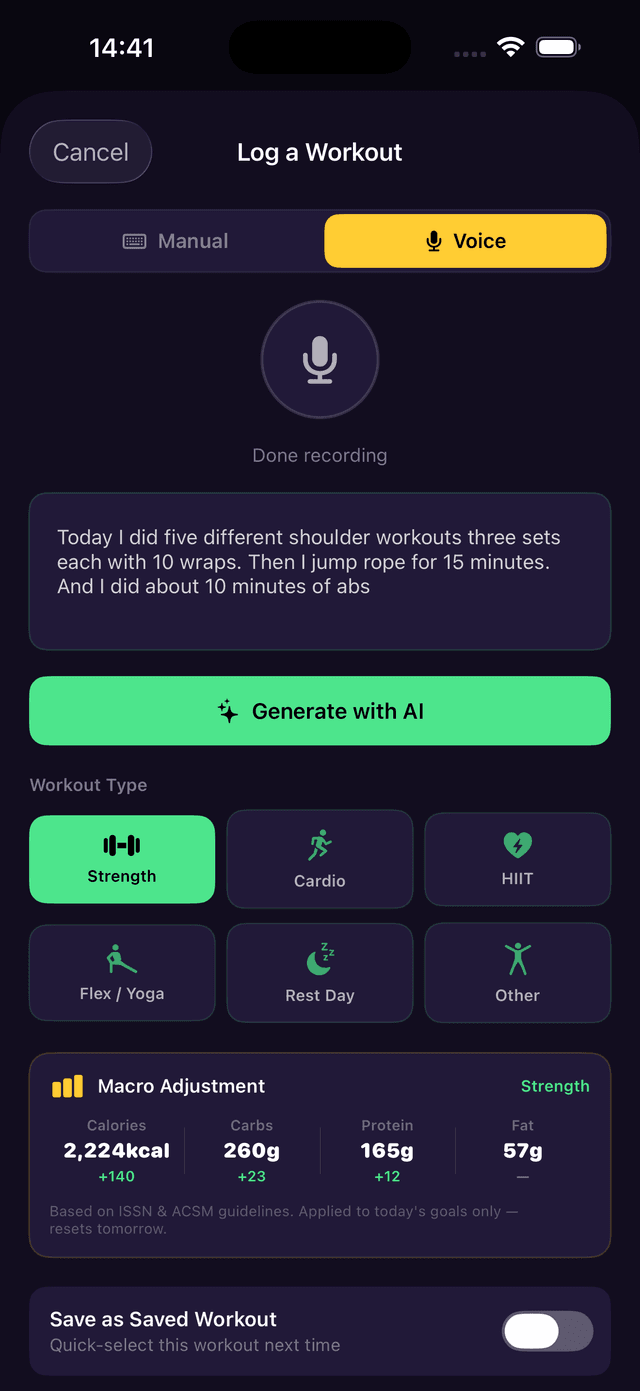
Once you stop recording, your description appears as text. Tap Generate with AI and Macromaxxing will automatically fill in the workout name, duration, calories burned, and workout type based on what you said.
Step 4: Review Macro Adjustments & Log
Before you log, check the Macro Adjustment preview at the bottom. This shows how your daily macro goals will change based on the workout. For example, a 45-minute Strength workout might add +140 kcal, +23g carbs, and +12g protein to your daily targets. These adjustments follow ISSN and ACSM guidelines.
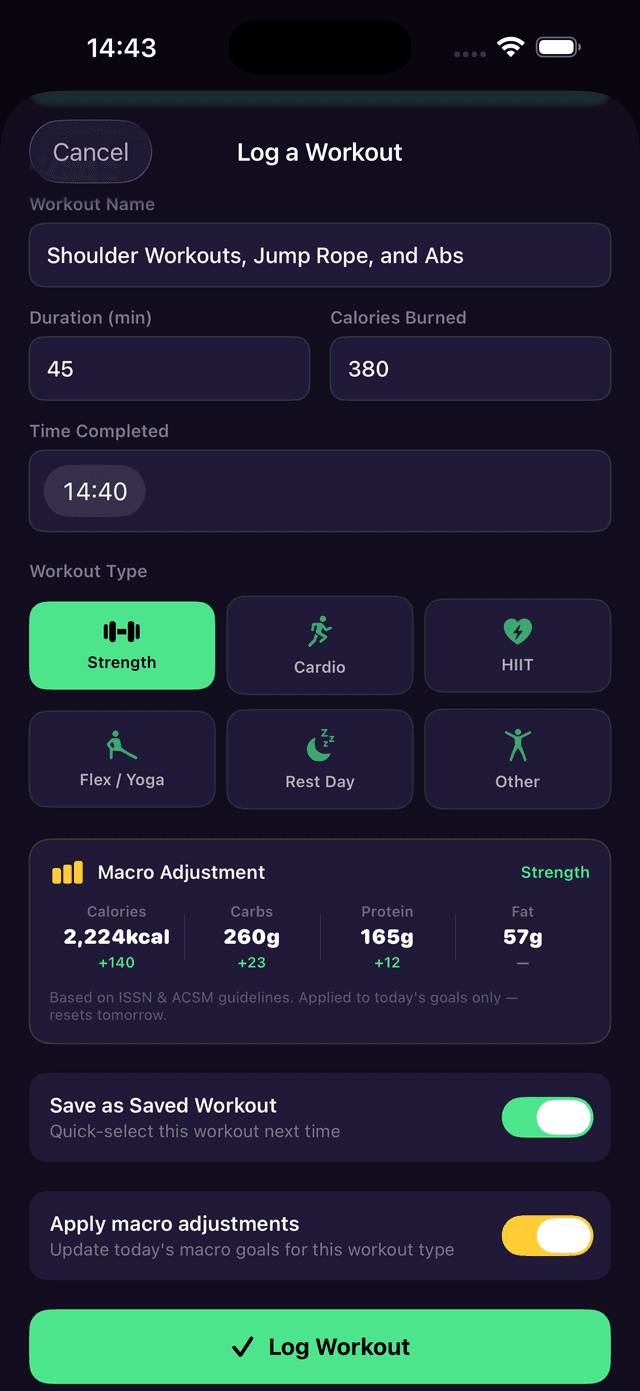
Save as Saved Workout
Toggle this on to save the workout as a template. Next time you can quick-select it instead of entering everything again.
Apply Macro Adjustments
Toggle this on to automatically update your daily macro goals for the workout you just logged. Your calorie, carb, protein, and fat targets adjust based on workout type and intensity.
When everything looks good, tap the green Log Workout button at the bottom to save your workout.
Earns Aura Points!
Every workout you log earns you aura points toward your level and daily streak. Stay consistent to climb the leaderboard.
Step 5: View Your Workout Log
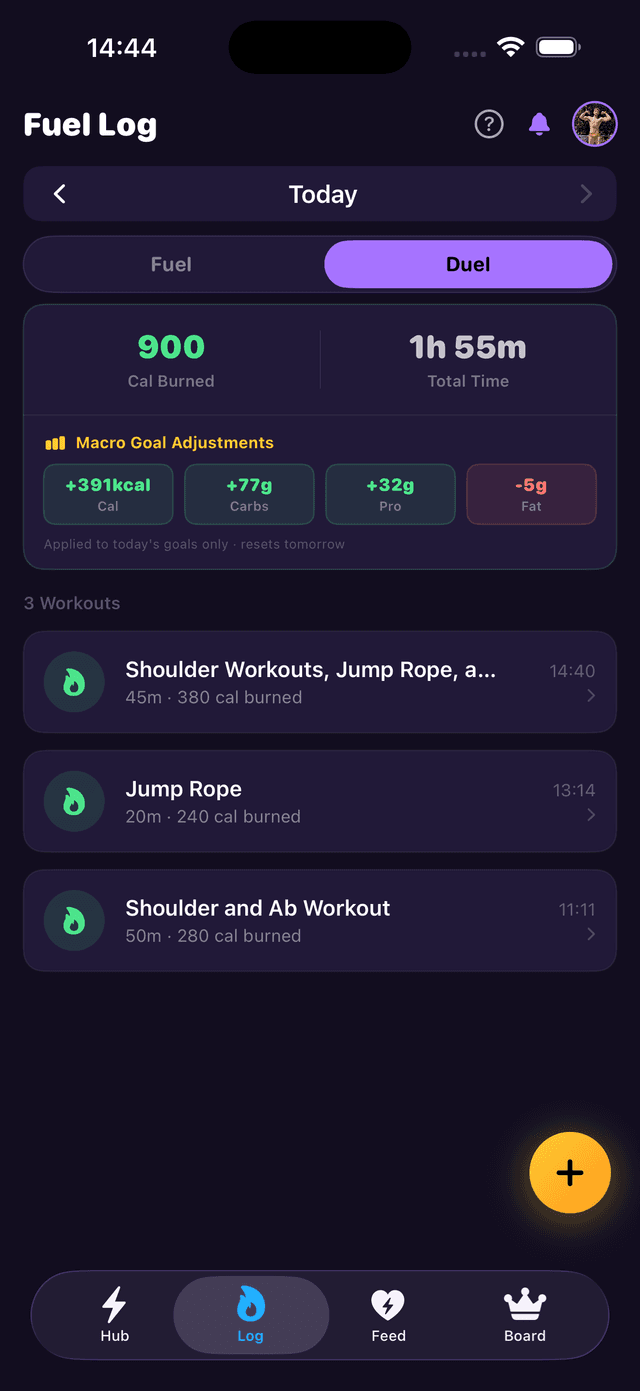
After logging, head to the Log tab and tap Duel to see your workout history for the day. You'll see:
- Total Calories Burned and Total Time across all workouts
- Macro Goal Adjustments showing how much was added to each macro (calories, carbs, protein, fat)
- Each individual workout entry with its name, time logged, duration, and calories burned
Editing a Workout
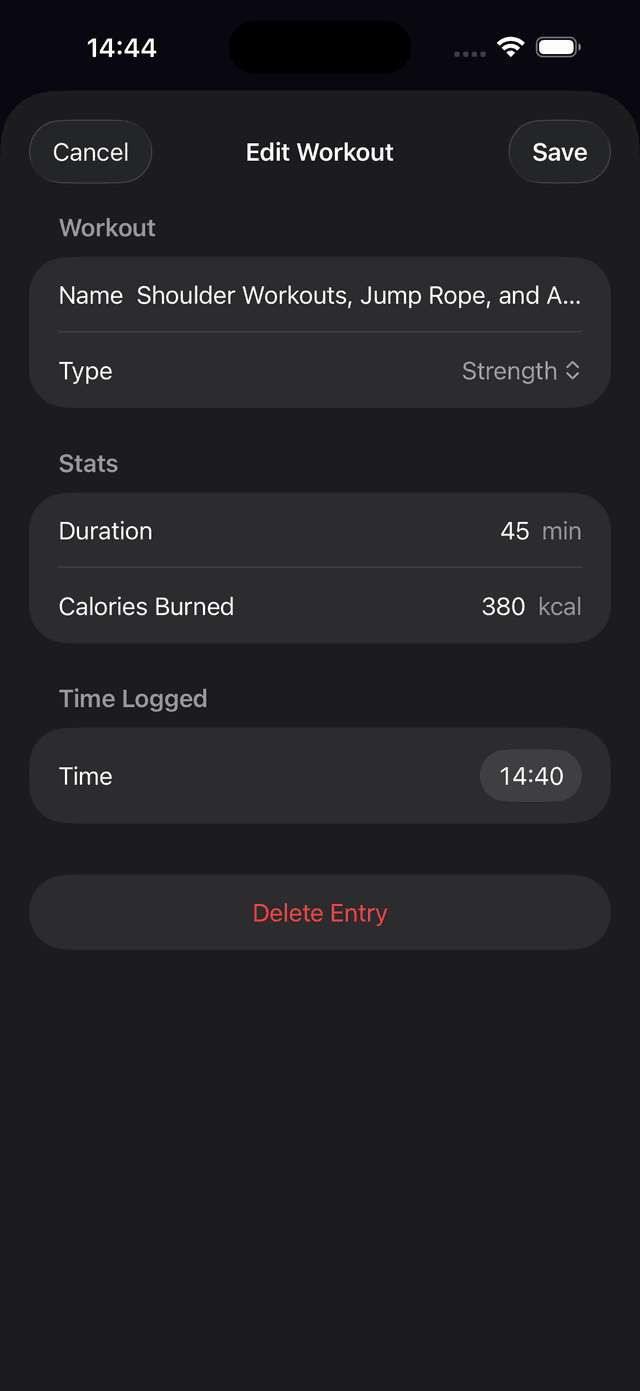
Made a mistake? Tap any workout entry in the Log tab to open the Edit Workout screen. From here you can update the name, type, duration, calories burned, or time logged. Tap Save to apply your changes, or Delete Entry to remove it.
Share Your Workout as a Post
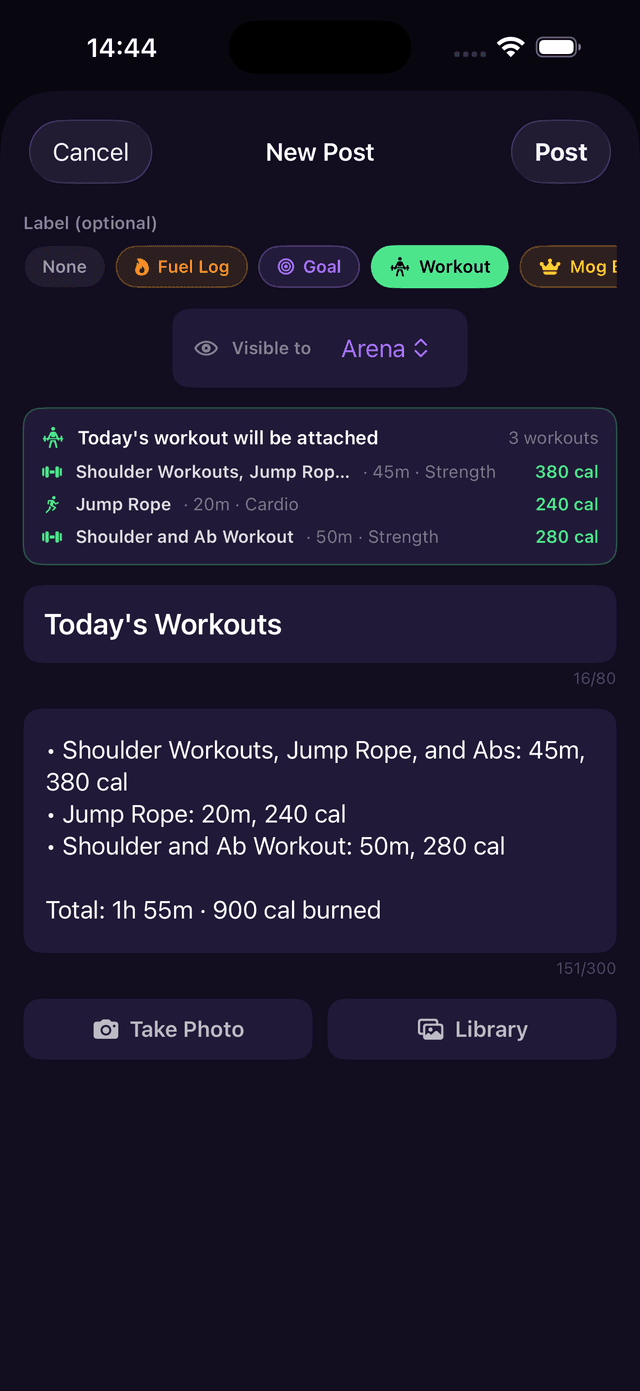
Want to share your training with the community? When creating a post, select the Workout label and your day's workouts will be automatically attached. The post shows each exercise with its duration and calories burned, plus the total session summary.
See our How to Make a Post guide for the full walkthrough on creating posts.